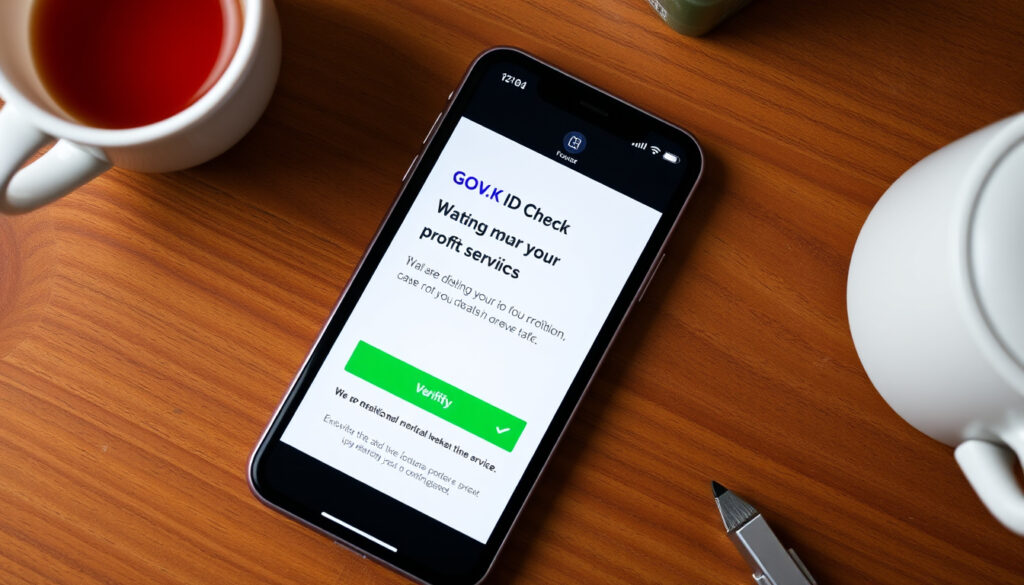
GOV.UK ID Check App: Download, Link and Fix Issues
Downloading a government app isn’t something you do every day. But when HMRC or a new employer asks you to prove your identity, the official GOV.UK ID Check app becomes the fastest way to verify who you are without queuing at a government office. This guide walks you through every step, from getting the app on your phone to fixing the common glitches that trip people up.
Released: 26 October 2023 · Platforms: iOS 16.7+ and Android 10+ · Developer: Government Digital Service · Purpose: Prove identity for HMRC services
Quick snapshot
- Used for HMRC identity checks (GOV.UK Official Guidance)
- Requires UK passport or driving licence (GOV.UK Official Guidance)
- Developed by Government Digital Service (GOV.UK Official Guidance)
- Whether the app will expand beyond HMRC (GOV.UK Official Guidance)
- Full list of supported documents beyond passport and driving licence (GOV.UK Official Guidance)
- No public timeline for expansion to other services (GOV.UK Official Guidance)
- More One Login services likely to adopt the app (GOV.UK Official Guidance)
The GOV.UK ID Check app is an official identity verification tool developed by the Government Digital Service. It allows users to prove their identity for HMRC services.
GOV.UK Official Guidance
The table below lays out the key specifications you need to know before getting started.
| Attribute | Value |
|---|---|
| Developer | Government Digital Service |
| Release date | 26 October 2023 |
| Minimum Android OS | 10.0 |
| Minimum iOS version | 16.7 |
| Required documents | UK passport or driving licence |
| App store search name | GOV.UK ID Check |
| Language | English only |
| Camera requirement | Yes (front and back) |
| Default browser needed | Safari, Chrome, or Firefox |
| Adblock impact | Must be disabled during linking |
How to download the GOV.UK ID Check app
The easiest place to start is the official app store for your device. But the process is slightly different depending on whether you own an Android phone or an iPhone.
Download on Android
- Open the Google Play Store on your Android phone. Your device needs to be running Android 10 or higher, with Chrome or Firefox set as your default browser (GOV.UK Official Guidance).
- Search for “GOV.UK ID Check” — the app icon is a white crown on a dark background.
- Tap Install and wait for the download to finish.
Android users on versions below 10 won’t see the app at all. If you’re running an older device, you’ll need to upgrade your OS or borrow a more recent phone.
The implication: Android fragmentation means some users are locked out. Check your OS version in Settings → About phone before you start.
Download on iPhone
- Visit the Apple App Store on an iPhone 8 or newer running iOS 16.7 or higher (GOV.UK Official Guidance).
- Search for “GOV.UK ID Check” and tap Get.
- Authenticate with Face ID or your Apple ID password to start the download.
The pattern: Apple’s tighter ecosystem means fewer compatibility surprises — if your phone supports iOS 16.7, the app will run.
Using the QR code to download
- When you’re on a GOV.UK service that requires identity verification, a QR code appears on the screen.
- Open your phone’s camera app and point it at the QR code — a banner will appear linking directly to the app store page (GOV.UK Official Guidance).
- Tap the banner to jump straight to the download page. This is the fastest method and avoids the search step.
Why this matters: The QR code eliminates guesswork. You’re taken directly to the correct app store listing, reducing the risk of downloading a fake.
How to link the GOV.UK ID Check app to your account
Downloading the app is only half the job. You also need to connect it to your GOV.UK One Login so the system knows your phone belongs to you.
Linking with a QR code
- After launching the app for the first time, you’ll see a prompt to scan a QR code displayed on the government service page you were using.
- Point your phone’s camera at the QR code on your computer or tablet screen. The app will automatically detect it and begin the linking process (GOV.UK Official Guidance).
- Once linked, you’ll see a confirmation message in both the app and the browser page.
Adblockers and incognito mode break the QR linking flow. Make sure both are turned off, and use the default browser (Safari on iPhone, Chrome or Firefox on Android).
The trade-off: Security features like private browsing prevent the seamless connection, so you’ll need to lower your privacy guard temporarily.
Linking via a button on GOV.UK
- If you don’t have a QR code, you can also click the “Link GOV.UK ID Check” button that appears during the identity verification flow on GOV.UK (GOV.UK Official Guidance).
- This sends a deep link to your phone, opening the app and establishing the connection.
- Make sure your phone is nearby and unlocked when you click the button.
The pattern: Both methods achieve the same result — a secure pairing between your device and your government account. Choose whichever is more convenient in your browser session.
Most issues stem from three root causes: permissions, browser settings, or app version. Fix those first and you’ll likely avoid needing to call HMRC.
YouTube Fix Guide, based on community-reported workarounds
How to sign in and use the GOV.UK ID Check app
Once the app is linked, using it to prove your identity is straightforward.
Signing in with your credentials
- Open the app and tap “Sign in”. Use the same email and password you set up for your GOV.UK One Login (Scribd GOV.UK Guide PDF).
- If you haven’t created a One Login yet, the app will prompt you to register first.
Why this matters: The app doesn’t create a separate login — it’s an extension of your existing government account, so your credentials are consistent.
Scanning your face and photo ID
- After signing in, the app asks you to scan your passport or driving licence. Place the document on a flat surface with good lighting and frame it within the camera guide (GOV.UK Official Guidance).
- Next, you’ll be asked to take a photo of your face. The app uses the front camera and matches your live image against the photo on your ID.
- The whole process takes about 2-3 minutes. Results appear on the original government service website, not in the app itself (Scribd GOV.UK Guide PDF).
The implication: The app is a data collection tool, not a dashboard. You do your scanning there, then go back to the web to see if you passed.
What to do if the GOV.UK ID Check app is not working
Even official government apps can glitch. Here are the most common fixes, based on official guidance and user reports.
Common issues and fixes
- App won’t link: Disable adblockers, exit incognito mode, and use Safari or Chrome/Firefox as your default browser (GOV.UK Official Guidance).
- App crashes on launch: Force close the app and restart your phone. If that fails, clear the app cache in your phone settings (YouTube Fix Guide).
- Camera not working: Go to your phone settings and grant camera permission to the app. If the prompt didn’t appear, you may need to manually enable it (GOV.UK Official Guidance).
- Update needed: Check the Play Store or App Store for an available update. Outdated versions may cause errors (YouTube Troubleshooting Video).
- App stuck on linking screen: Restart the authentication process from the GOV.UK website. Do not try to force the app back to the linking step (YouTube Fix Guide).
Most issues stem from three root causes: permissions, browser settings, or app version. Fix those first and you’ll likely avoid needing to call HMRC.
The pattern: Official guidance covers linking issues thoroughly, but crashes and camera problems rely on community-reported workarounds — which may not work for every device.
Contacting support
- If none of the fixes work, visit the GOV.UK official guidance page (UK government digital service help) for the latest advice.
- Alternatively, contact HMRC directly through their online help system — but note they may redirect you back to the guidance page.
Why this matters: There’s no dedicated support line for the app itself, so exhausting the online fixes first saves time.
What is the GOV.UK ID Check app and how does it work?
Understanding the big picture helps when things don’t go smoothly.
Purpose of the app
- The GOV.UK ID Check app is an official identity verification tool developed by the Government Digital Service (GOV.UK Official Guidance).
- It allows users to prove their identity for HMRC services, such as checking your tax account or reporting company changes.
- The app is part of the GOV.UK One Login system, which aims to create a single digital identity for all government services (Scribd GOV.UK Guide PDF).
The app is tied to a single department (HMRC) for now, yet it’s built to scale. That means early adopters are testing infrastructure that will serve millions later — but they get no special treatment if it fails.
The implication: If you’re using this app today, you’re an early adopter of a national digital ID system. That comes with both convenience and a few rough edges.
Compatibility requirements
- Android: OS version 10.0 or higher, with Chrome or Firefox as default browser.
- iPhone: iPhone 8 or newer, iOS 16.7 or higher. Safari must be the default browser.
- Documents accepted: UK passport or UK driving licence (full or provisional).
- Camera: Both front and rear cameras are required — selfie for face scan, rear for ID document.
The catch: If your phone predates these minimum OS versions, you’re locked out entirely. No web-based alternative exists for the same process.
Step-by-Step Summary
Here’s the condensed version of the entire flow, from download to verification.
- Download the app from Google Play or App Store, or scan the QR code from the GOV.UK website.
- Link the app to your GOV.UK One Login by tapping “Link app to continue” or scanning the QR code.
- Sign in with your One Login credentials.
- Scan your valid UK passport or driving licence using the rear camera.
- Take a selfie with the front camera for facial matching.
- Return to the original government service website to see the verification result.
The trade-off: Each step builds on the previous one — a failure at any stage requires starting over from step 2 (re-linking).
One last note: The GOV.UK ID Check app is distinct from the “UK Immigration: ID Check” app used for visa applications. Do not confuse them — they serve different audiences and government departments (GOV.UK Official Guidance).
Related reading: DVLA Driver Changes Requirements – 2024-2026 Medical and Renewal Guide · How to find your NHS number – official methods and tips
Frequently asked questions
Is the GOV.UK ID Check app secure?
Yes. The app uses encrypted connections and follows UK government security standards. It scans your ID and face but does not store the images on your phone — they are processed by the government’s secure backend (GOV.UK Official Guidance).
What documents can I use with the app?
You need either a valid UK passport (any nationality) or a full/provisional UK driving licence. Other forms of ID are not currently supported (GOV.UK Official Guidance).
What happens if my identity check fails?
You’ll see a result on the original government service page. If the check fails, you may be asked to try again or visit a government office in person. The app does not reveal the specific reason for failure (GOV.UK Official Guidance).
Can I use the app outside the UK?
Yes, you can download and use the app while abroad as long as you have an internet connection. The app uses your phone’s camera to scan your UK passport or driving licence, so no UK network requirement (GOV.UK Official Guidance).
How long does the app keep my data?
According to official guidance, the scanned images are retained only long enough to complete the identity check and then deleted. Your personal data is handled under UK data protection law (GOV.UK Official Guidance).
Do I need a smartphone to use the app?
Yes. The app is only available on smartphones running iOS or Android. If you don’t have a smartphone, you’ll need to use alternative identity verification methods offered by HMRC (GOV.UK Official Guidance).
Can I use the app if I have a non-UK passport?
No. Only UK passports and UK driving licences are accepted. A non-UK passport will not work, even if it’s a biometric passport (GOV.UK Official Guidance).
More related posts
 David Walliams: Allegations, Career, and Personal Life
 Static Caravans for Sale – UK Prices Parks and 2025 Guide
 The Smashing Machine: True Story, Flop & Mark Kerr’s Health
 Anthony Bourdain: His Life, Death, and Lasting Legacy
 Sally Phillips: Three Neurodivergent Sons, Faith, and Career
 Gorka Marquez Leaving Strictly: Reason, Plans, Family Life
 Max Parker Biography: Age, Husband, Emmerdale Role
 Lily-Rose Depp: Biography, Illness & Relationships
